How to Connect a Blu-ray Player to Your TV or Receiver
Recommended picks

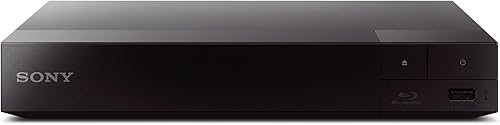

What You Need Before You Start
Gather your Blu-ray player, at least one HDMI cable rated for the resolution you plan to use (Standard HDMI for 1080p, High Speed or Premium High Speed for 4K HDR), and your TV remote so you can switch inputs. If you have a separate AV receiver or soundbar, you will also need a second HDMI cable and you should confirm that receiver has an HDMI ARC or eARC port. Check the back of the player for the port layout before you start routing cables. Players like the LG BP175 (4.5 stars, over 7,000 ratings, $89.97) include both HDMI and Ethernet ports, so you can lock in a wired network connection at the same time.
Connecting Directly to a TV (No Receiver)
Run the HDMI cable from the Blu-ray player's HDMI Out to any open HDMI input on your TV. Power on both devices, then use your TV remote to select that input. The TV will pull video and audio from the single cable, and most modern TVs decode Dolby Digital and DTS through this connection. The Sony BDP-S1700U (4.4 stars, 1,488 ratings, $114.99) connects via HDMI and weighs just 1.8 lb, so it fits easily on a shelf or inside an AV cabinet. If your TV has an ARC-labeled HDMI port and a soundbar connected there, keep the Blu-ray on a different input so the TV can pass audio to the soundbar cleanly.
Connecting Through an AV Receiver for Surround Sound
For full surround sound, plug the Blu-ray player's HDMI Out into an HDMI input on your AV receiver, then run a second HDMI cable from the receiver's HDMI Out (labeled Monitor Out or Main Out) to the TV's HDMI ARC or eARC port. The receiver decodes lossless formats like Dolby TrueHD and DTS-HD Master Audio, which a TV speaker system cannot. Set the player's audio output to Bitstream so the raw encoded audio travels to the receiver intact. This chain gives you the cleanest possible audio because the receiver handles all decoding rather than mixing it down first.
Setting Up Audio Output on the Player
After cabling, go into the Blu-ray player's settings menu and find the Audio Output or Sound settings. If the player feeds an AV receiver, choose Bitstream for the primary audio and Dolby Digital for secondary (bonus view) audio. If the player connects directly to a TV, choose PCM, which the TV can always decode. The Sony BDPS5200 (4.2 stars, 1,100 ratings, $104.00) includes Wi-Fi for streaming apps, and its audio menu follows the same structure. Avoid leaving the default setting unchecked, because some players ship with PCM forced on, which silently downgrades lossless soundtracks even when a capable receiver is in the chain.
Using the Ethernet Port for Firmware Updates and BD-Live
Many Blu-ray players include an Ethernet port for internet connectivity. Plug a network cable into that port and your router, or connect via the player's Wi-Fi setup menu if it supports wireless. A live network connection lets you download firmware updates, which fix playback bugs and add disc compatibility. BD-Live discs also use the connection to pull bonus content. Keeping firmware current matters more than most users expect, especially with newer disc releases that sometimes require updated decoders to play correctly.
Older Connections: Component and RCA
If your TV lacks HDMI, component video (three cables labeled Y, Pb, Pr) carries HD video up to 1080i, with separate red and white RCA cables for stereo audio. Pure composite (one yellow video cable plus red and white audio) tops out at 480i standard definition. Neither option passes lossless surround audio or 4K HDR. Use these only when HDMI is genuinely unavailable, and know that a 1080p Blu-ray will be scaled down to 1080i or less over component. Most players built in the last several years have removed component outputs entirely, so check your specific model's rear panel before buying cables.
Common mistakes to avoid
- Plugging the Blu-ray player into the TV's ARC port when a receiver is already using it, which forces the TV to pick only one audio source.
- Leaving the player's audio output on PCM when connected to an AV receiver, which silently strips lossless Dolby TrueHD and DTS-HD soundtracks down to standard Dolby Digital.
- Using a Blu-ray disc with a player that has outdated firmware, which causes playback errors or a black screen on newer releases.
- Connecting 4K Blu-ray to a Standard HDMI cable instead of a Premium High Speed HDMI cable, which cannot carry the 18 Gbps bandwidth needed for 4K HDR content.
- Forgetting to switch the TV's input source after plugging in the player, then assuming the player is defective when nothing appears on screen.
- Placing the player in an enclosed cabinet without ventilation, which causes it to overheat and shut down during longer movies.
Frequently asked questions
Do I need a special HDMI cable for 4K Blu-ray?
Yes. Standard HDMI cables top out at 10.2 Gbps, which is not enough for 4K HDR at 60 fps. You need a Premium High Speed HDMI cable rated for 18 Gbps to carry 4K HDR without signal dropouts or a degraded picture. The cable does not need to be expensive, just certified Premium High Speed, which is printed on the packaging.
Can I connect a Blu-ray player to a soundbar instead of a receiver?
Yes. Connect the player's HDMI Out to the soundbar's HDMI In (if it has one), then run an HDMI ARC cable from the soundbar to the TV's ARC port. If the soundbar only has optical input, use an optical cable from the player to the soundbar for audio and a separate HDMI cable from the player to the TV for video. Optical cannot carry lossless formats, so Dolby Atmos and DTS-HD will be downmixed.
Why does my Blu-ray player show no picture on the TV?
The most common cause is a mismatched input selection. Confirm the TV is set to the HDMI port the player is plugged into. If the picture is still missing, try a different HDMI cable, because a failing cable can cause a complete signal dropout. Also check whether the player's resolution output matches what the TV can accept, since some players default to a resolution the TV does not support.
Does a Blu-ray player need internet access to work?
No. A Blu-ray player will play discs without any network connection. Internet access is only required for firmware updates, BD-Live bonus features on certain discs, and built-in streaming apps if the player includes them. Connecting via Ethernet or Wi-Fi is recommended so you can keep firmware current, but it is optional for basic disc playback.
Can I run a Blu-ray player and a gaming console through the same HDMI input?
Not directly, but an HDMI switch lets you plug multiple sources into one TV input and toggle between them. A better solution is an AV receiver with multiple HDMI inputs, which handles the switching automatically when you power on a source and also handles audio decoding. If you only have one spare TV input, a passive HDMI switch works fine for light use. For questions or setup advice, reach out at hello@hometheaterbuilder.com.